At the top of the loan page, four indicators summarize the loan: initial and outstanding principal, interest rate, next payment and repayment progress. The action buttons sit next to the title:
| Button | Effect |
|---|---|
| Edit | Reopens the loan information so you can correct it. |
| Accounting settings | Intacct accounts, accrued interest and dimensions specific to this loan (see below). |
| Post disbursement | Posts the entry for the funds received (principal received) in Intacct. You are asked to confirm. Refused for an imported or inactive loan. Only one entry per loan: a second submission is blocked. |
| Delete | Deletes the loan after confirmation. |
| Export | Exports the loan page. |
Below the indicators, five tabs organize the follow-up.
Repayment schedule tab
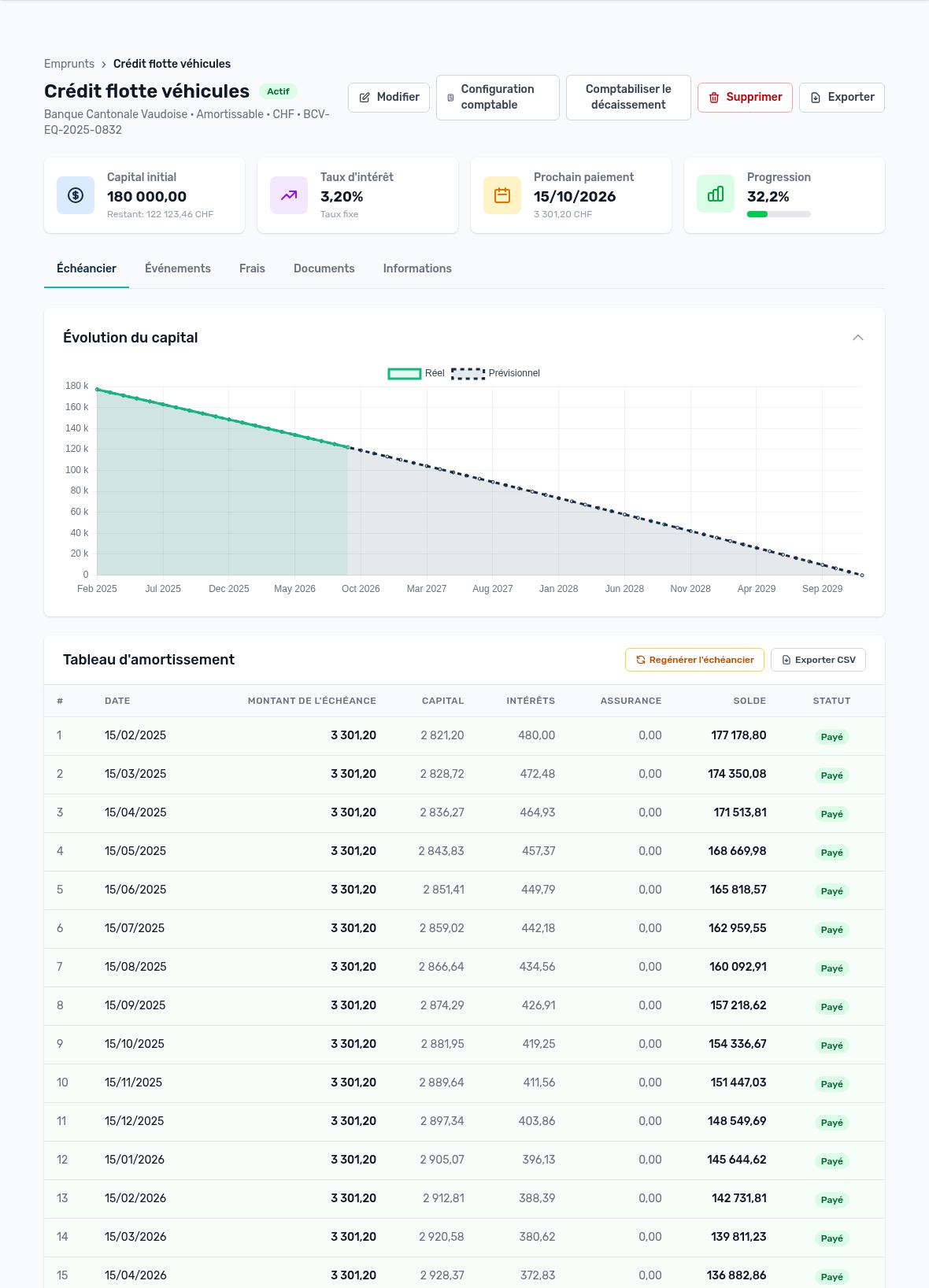
Repayment schedule tab: principal over time and amortization table
- The Principal over time chart shows actual principal (past installments) and projected principal (upcoming installments).
- The amortization table lists each installment: number, date, installment amount, principal portion, interest, insurance, outstanding balance and status.
- Statuses: Scheduled (upcoming installment), Pending (due date reached, bank debit not yet matched), Paid (matched with a bank debit), Overdue (date passed with no payment recorded). The next installment is highlighted with a frame.
- Export CSV: downloads the repayment schedule for Excel or for the bank.
- Regenerate schedule: recalculates unpaid installments after the loan has been changed, then reapplies the events entered (early repayments, rate changes). Paid installments do not change. You are asked to confirm.
Events tab
This tab records the life of the contract. Click Add event, then choose the type and the effective date. Depending on the type, the window shows additional fields:
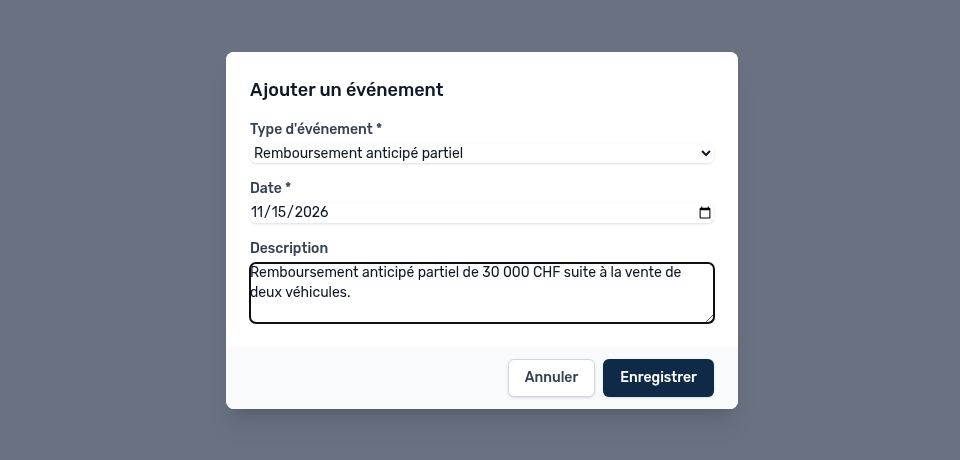
Add event window: partial early repayment
| Field | When it appears | Explanation |
|---|---|---|
| Amount repaid | Partial early repayment | Required. It must be lower than the outstanding principal at the effective date; to pay off the loan, choose full early repayment. |
| After repayment | Partial early repayment | Reduce installment (default): the end date stays the same and the following installments decrease. Reduce term: the installment stays the same, the loan ends earlier and the last installment is smaller. |
| New rate (%) | Rate revision (required), renegotiation (optional) | The current rate is shown below the field. Interest on the following installments is calculated with the new rate; the initial contract rate is still shown in the Information tab. |
| Description | All types | Free comment: amendment reference, reason for the renegotiation, etc. |
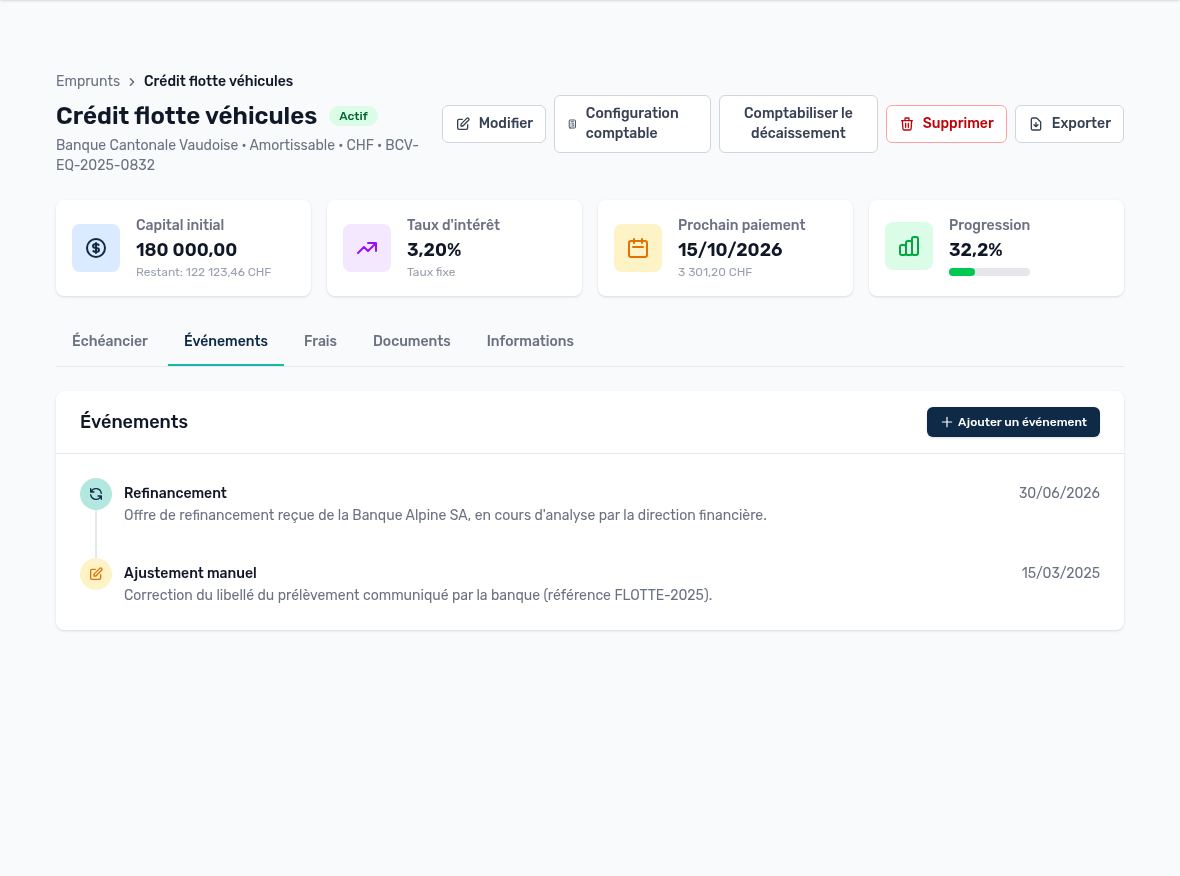
Events tab: chronological history
| Type | Effect in Arkaio |
|---|---|
| Partial early repayment | The amount is deducted from the outstanding principal; unpaid installments after the date are canceled and then recalculated according to the “Reduce installment” or “Reduce term” option. |
| Full early repayment | Arkaio automatically uses the outstanding principal at that date and cancels all following installments. The loan switches to “Closed” once the repayment is posted (loan reconciliation) and its effective date has been reached. |
| Rate revision | The following installments are recalculated with the new rate, on the outstanding principal and up to the end date. |
| Renegotiation | Same recalculation, with the new rate if one is entered. |
| Refinancing | Recorded in the history only; the repayment schedule does not change. |
| Manual adjustment | Recorded in the history only; the repayment schedule does not change. |
Tip — For each event, the history shows the amount repaid and the option chosen, or the change from the old rate to the new one. Installments already paid are never changed.
Fees tab
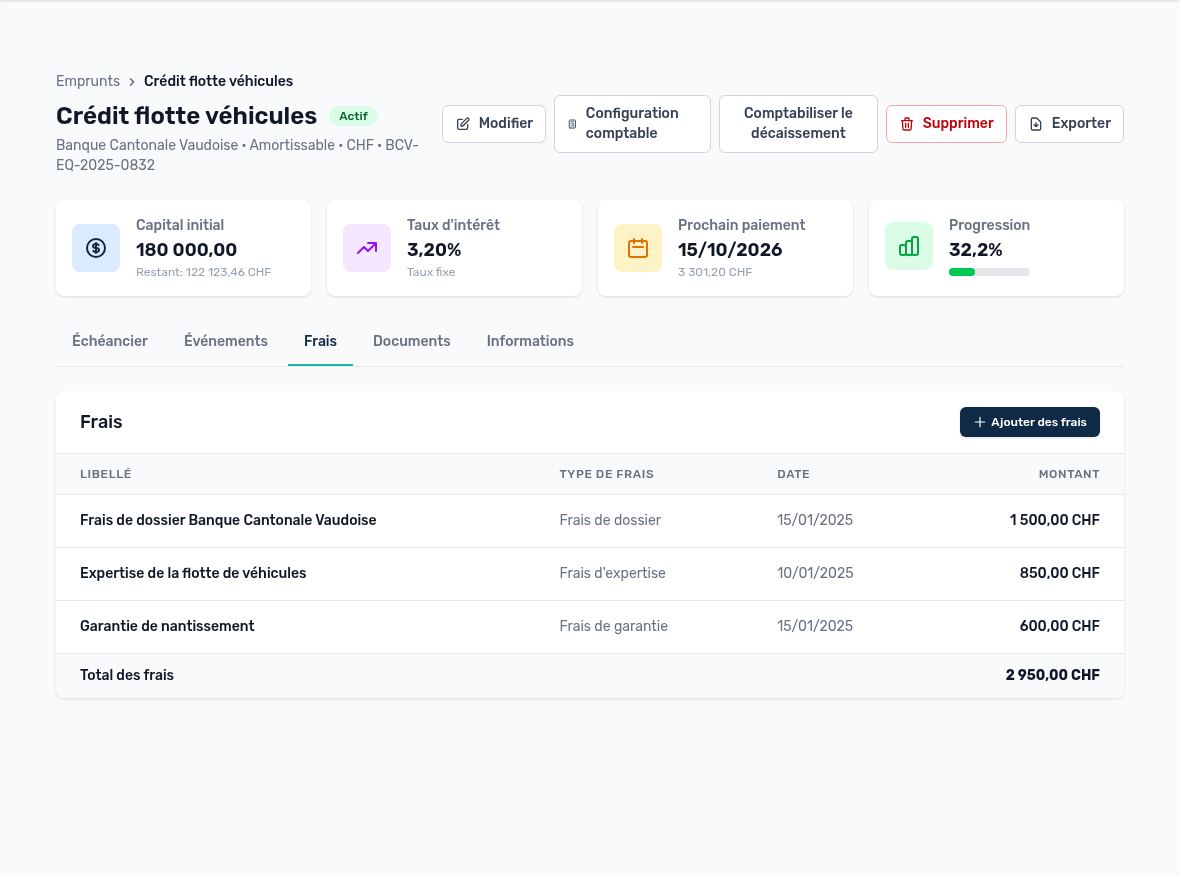
Fees tab: additional fees and total
Add fees records a one-off cost related to the loan: type (processing fee, arrangement fee, guarantee fee, appraisal fee, brokerage fee, monthly insurance), label, amount and payment date (optional). The table shows the total fees, which helps you calculate the real cost of the financing.
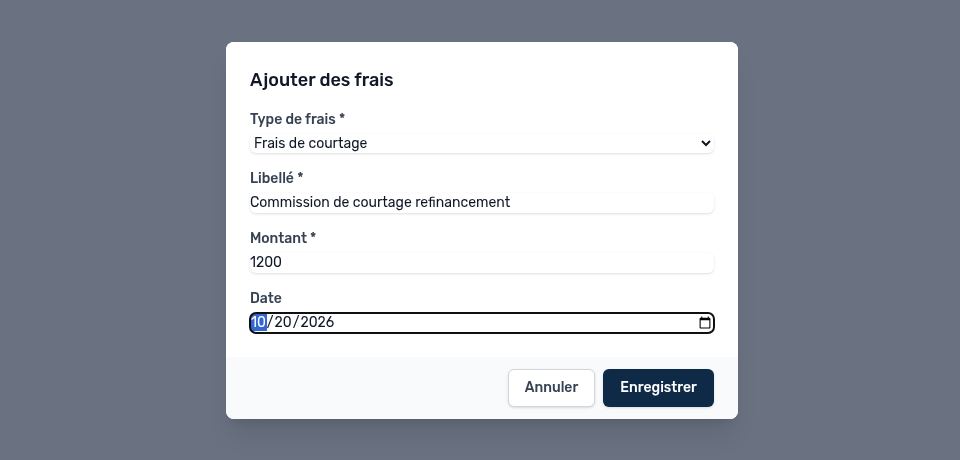
Add fees window
Documents tab
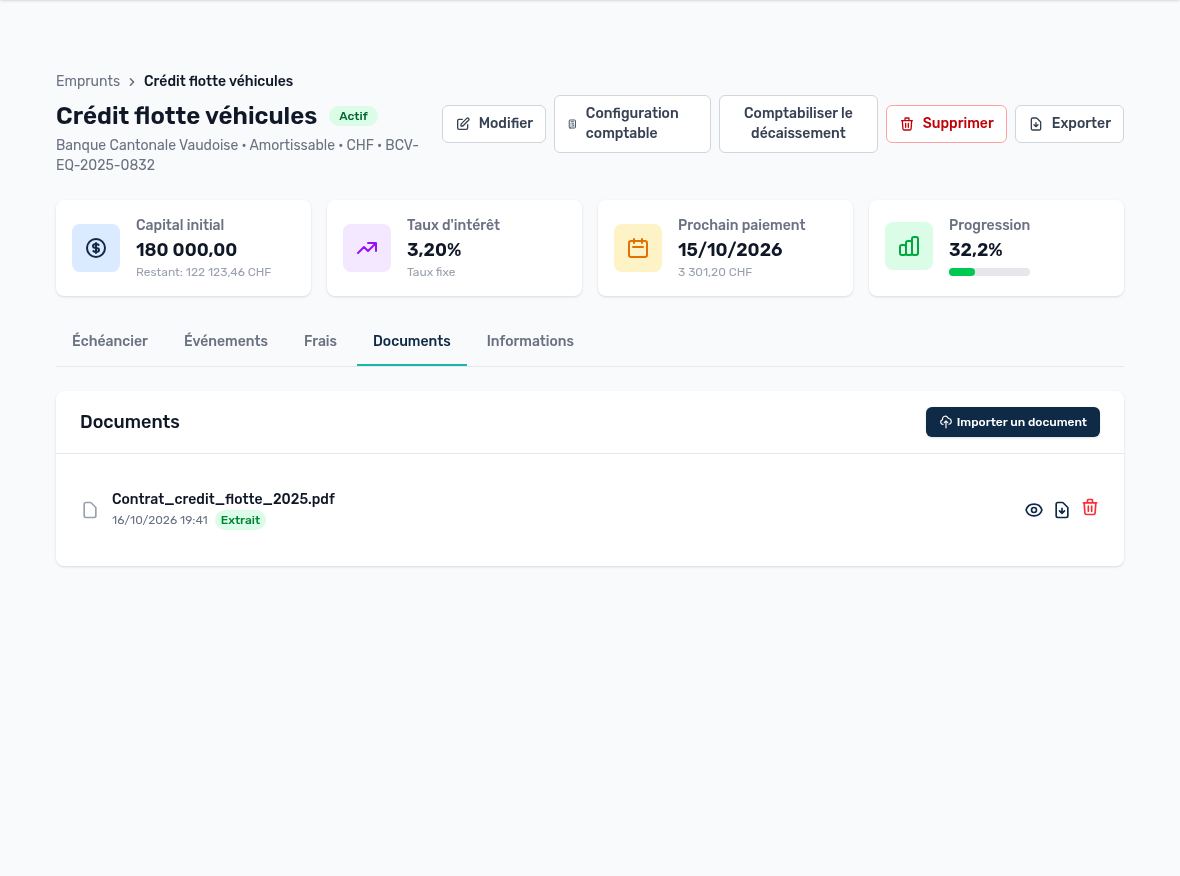
Documents tab: imported and extracted contract
- Click Import document and choose a PDF, XLSX, XLS or CSV file (10 MB maximum): contract, the bank's amortization table, etc.
- Leave Automatic AI extraction checked so that Arkaio reads the amounts, the rate and the repayment schedule from the document. Otherwise, run it later with Extract data with AI.
- The status shows the result: Extracted, Partial (some data is missing) or Failed.
- Open the Extraction preview (eye icon). Check and correct the suggested values: amount, rate, start date, lender, term and installments.
- Click Apply to loan: the approved values update the loan.
Tip — Extraction is an aid: always review the preview before applying it. Nothing changes until you click Apply.
The icons on the right also let you download and delete the document.
Information tab
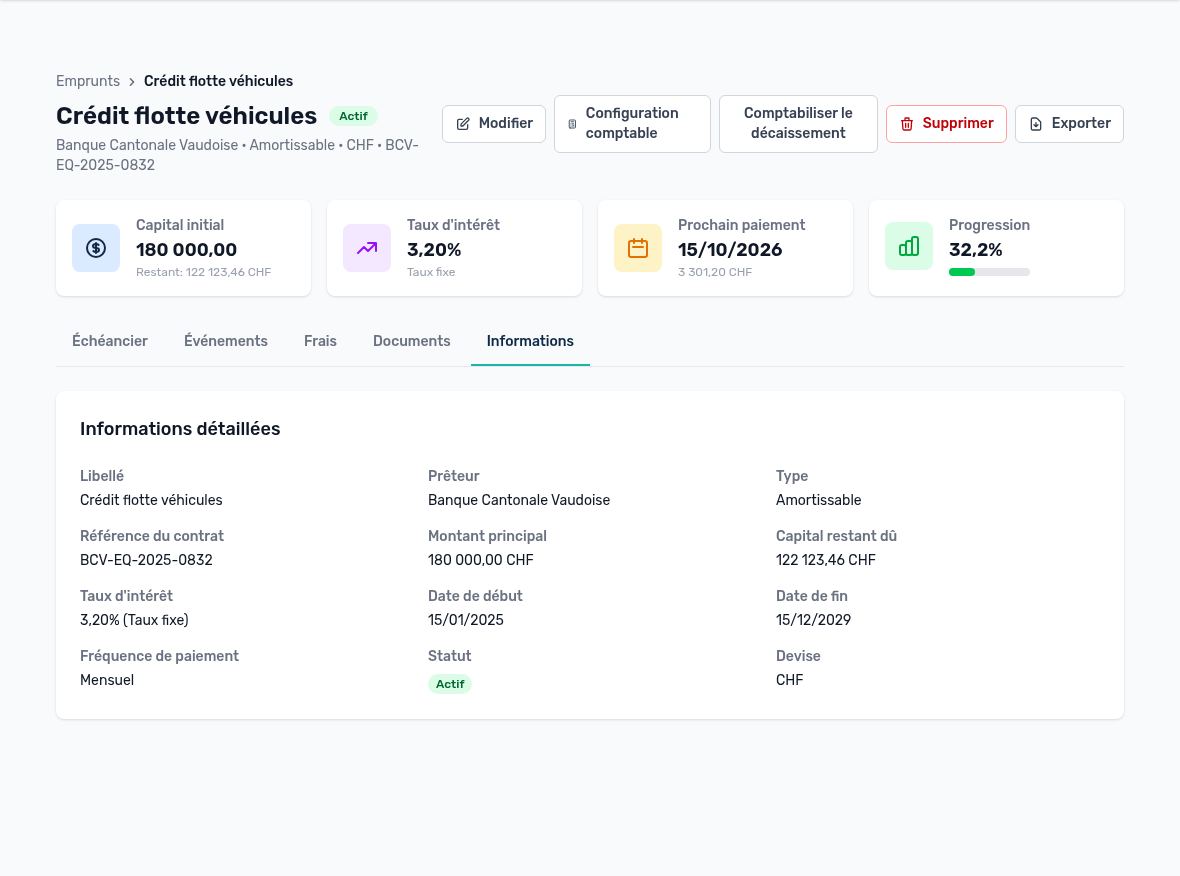
Information tab: detailed view
This tab summarizes all the data entered: name, lender, type, contract reference, principal amount, outstanding principal, rate and rate type, dates, frequency, status and currency. When provided, it also shows insurance, purpose, intercompany information and notes.
Updated on October 17, 2026