User list and invitations
The list shows each user, their role and their status. A new user who has been invited or has signed up appears under Pending users: they cannot do anything until an administrator has approved them and assigned them a role.
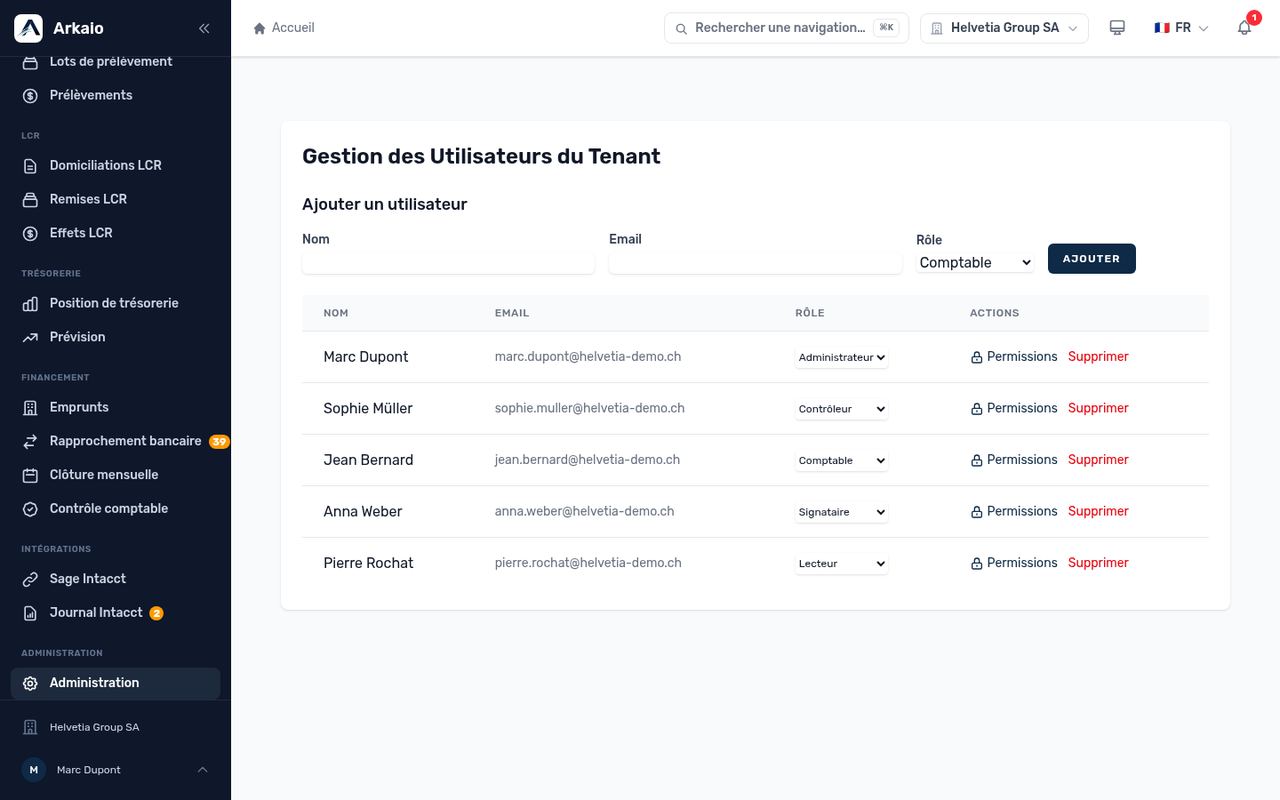
User management
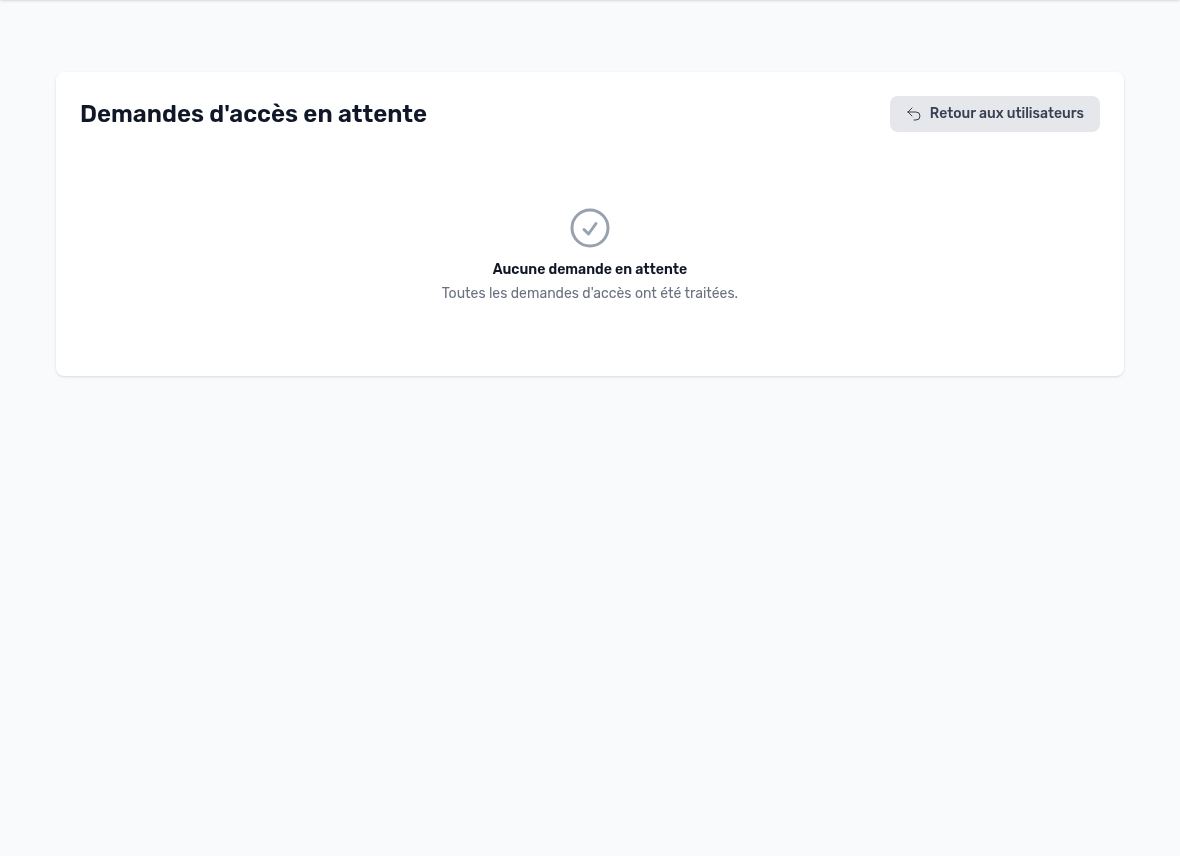
Users awaiting approval
Detailed permissions
The role provides a starting point; the Permissions screen lets you add or remove a specific permission for an individual (for example, giving an accountant access to loan management without making them a controller). Each permission is shown with its code and description.
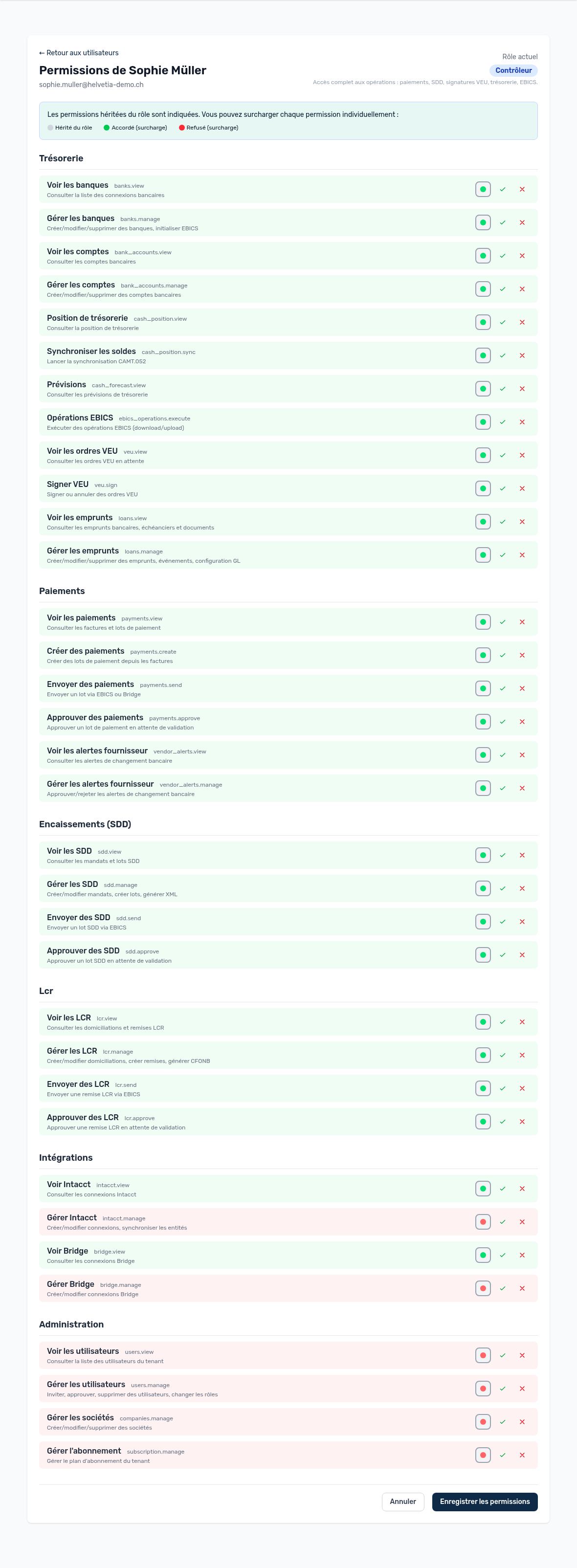
Detailed permissions for a user
Important — Avoid giving the same person the right to create payments and the right to approve them: even though the four-eyes principle prevents them from approving their own batches, it weakens internal control.
Company access
In a company's Users tab, you choose who can work on that company and with which local role (Administrator or User). A user who is not assigned to a company does not see it in the company selector.
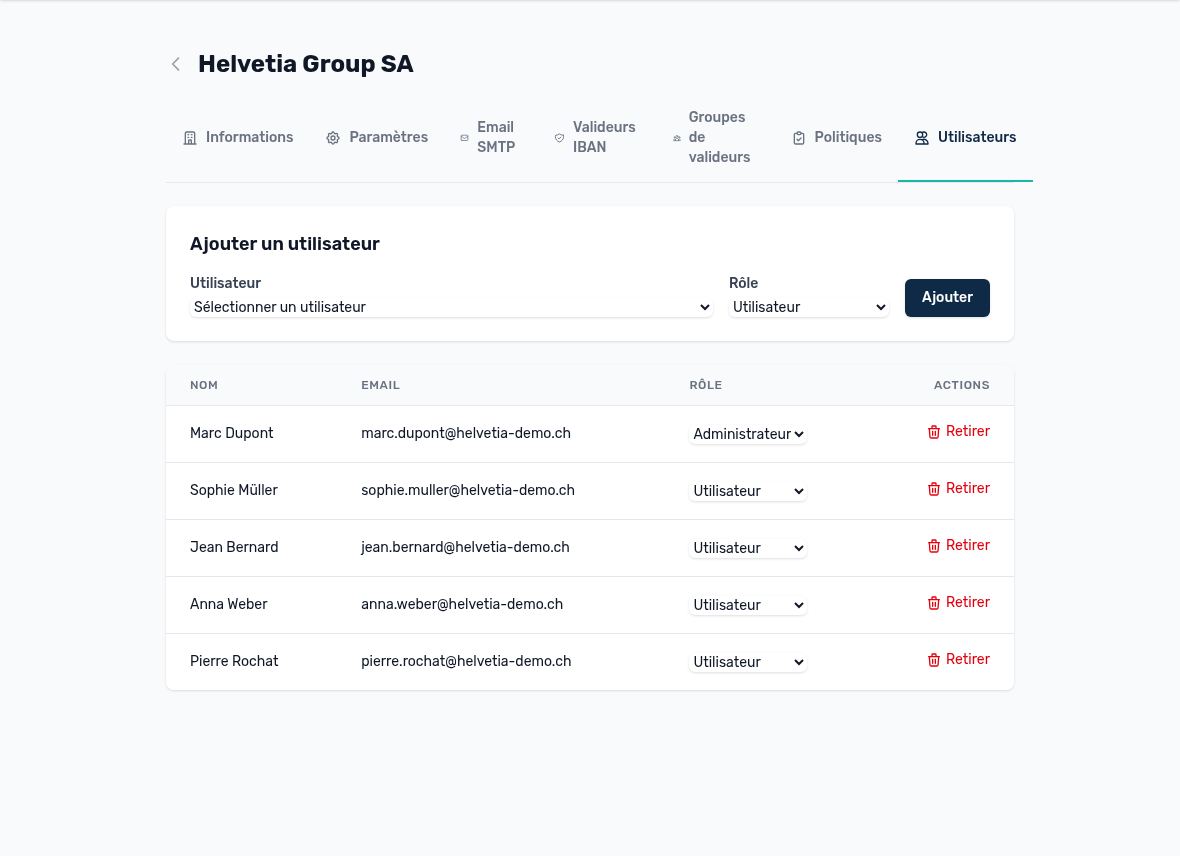
Users assigned to a company
Updated on October 17, 2026